Distributed Systems Simulator - Part 1: Introduction and GUI
Published at 2026-03-31T00:00:00+03:00
This is the first blog post of the Distributed Systems Simulator series, written for the recent v1.1.0 release. It explores the Java-based Distributed Systems Simulator program I created as my diploma thesis at the Aachen University of Applied Sciences (August 2008). It comes with a bunch of built-in distributed systems protocols, and you can also implement your own.
ds-sim on GitHub (modernized, English-translated version)
These are all the posts of this series:
2026-03-31 Distributed Systems Simulator - Part 1: Introduction and GUI (You are currently reading this)
2026-04-01 Distributed Systems Simulator - Part 2: Built-in Protocols
2026-04-02 Distributed Systems Simulator - Part 3: Advanced Examples and Protocol API
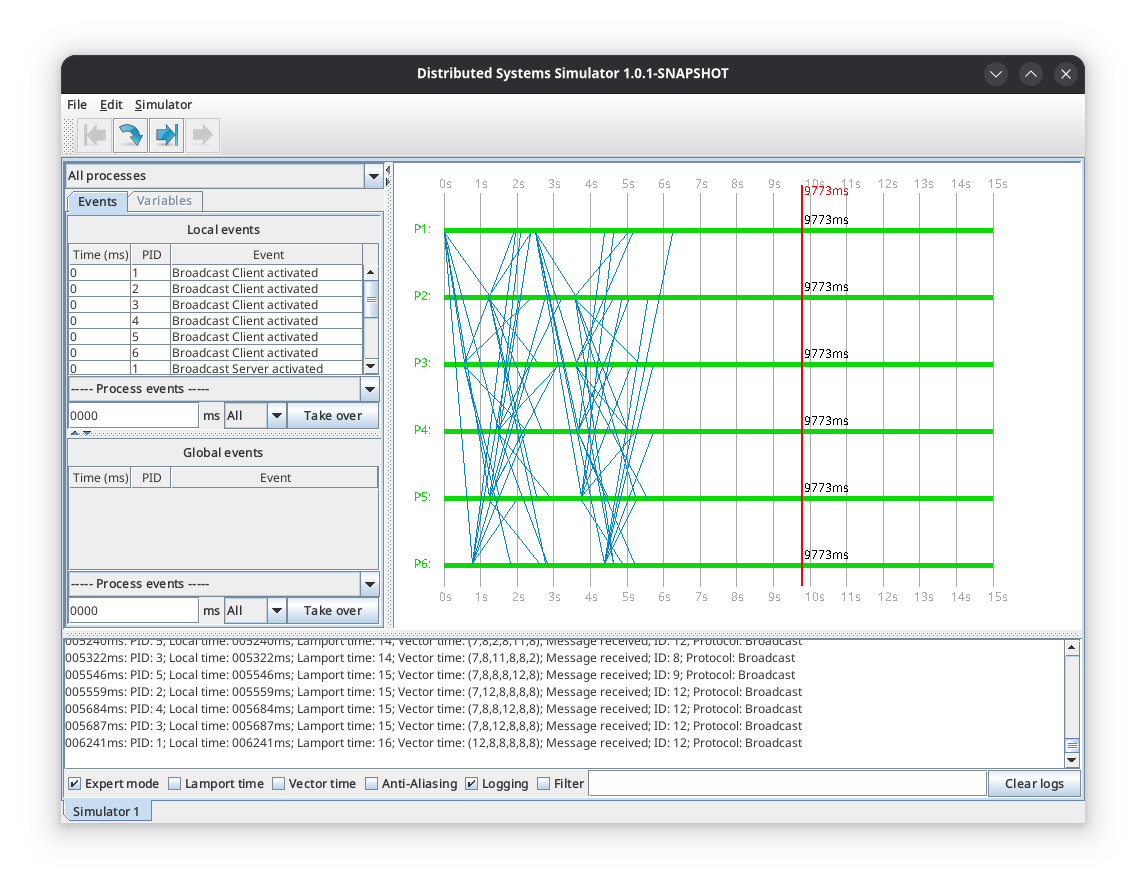
Table of Contents
Motivation
Distributed systems are hard to debug in production: many nodes, network partitions, random failures. A simulator lets you watch how a protocol behaves under failure in a controlled and repeatable way, with no real infrastructure needed.
In the literature, one can find many different definitions of a distributed system. Many of these definitions differ from each other, making it difficult to find a single definition that stands alone as the correct one. Andrew Tanenbaum and Maarten van Steen chose the following loose characterization for describing a distributed system:
"A distributed system is a collection of independent computers that appears to its users as a single coherent system" - Andrew Tanenbaum
The user only needs to interact with the local computer in front of them, while the software of the local computer ensures smooth communication with the other participating computers in the distributed system.
This thesis aims to make distributed systems easier to understand from a different angle. Instead of the end-user perspective, it focuses on the functional methods of protocols and their processes, making all relevant events of a distributed system transparent.
To achieve this, I developed a simulator, particularly for teaching and learning at the University of Applied Sciences Aachen. Protocols from distributed systems with their most important influencing factors can be replicated through simulations. At the same time, there's room for personal experiments—no restriction to a fixed number of protocols. Users can design their own.
The original simulator (VS-Sim) was written in Java 6 in 2008 with a German-language UI. In 2025, I modernized it as ds-sim: translated the code and UI from German to English, moved from Ant to Maven, upgraded from Java 6 to Java 21 (sealed classes, records, pattern matching), cleaned up error handling, added Javadoc, and wrote 208 unit tests with a headless test setup. Total: 199 files, over 15,000 lines of new code. Back in 2008, I wrote every line by hand in Vim. For the 2025 modernization, Claude Code did most of the heavy lifting—translation, refactoring, test generation, documentation. Times have changed.
Installation
The modernized ds-sim requires Java 21 or higher and Maven 3.8 or higher.
# Clone the repository
git clone https://github.com/snonux/ds-sim.git
cd ds-sim

# Set JAVA_HOME if needed (e.g. on Fedora Linux)
export JAVA_HOME=/usr/lib/jvm/java-21-openjdk

# Build the project
mvn clean package

# Run the simulator
java -jar target/ds-sim-*.jar
For a faster development build without running tests:
mvn package -DskipTests
After building, the following artifacts are available in the target/ directory:
- ds-sim-1.1.0.jar - Executable JAR with all dependencies bundled
- original-ds-sim-1.1.0.jar - JAR without dependencies
The project also includes 208 unit tests that can be run with mvn test. Example simulation files for all built-in protocols are included in the saved-simulations/ directory.
ds-sim source code on GitHub
Fundamentals
For basic understanding, some fundamentals are explained below. A deeper exploration will follow in later chapters.
Client/Server Model
+-----------------------------------------+
|                                         |
|   +--------+         +--------+         |
|   | Client |<------->| Server |         |
|   +--------+         +--------+         |
|                                         |
|       Sending of Messages               |
|                                         |
+-----------------------------------------+

Figure 1.1: Client/Server Model
The simulator is based on the client/server principle. Each simulation typically consists of a participating client and a server that communicate with each other via messages (see Fig. 1.1). In complex simulations, multiple clients and/or servers can also participate.
Processes and Their Roles
A distributed system is simulated using processes. Each process takes on one or more roles. For example, one process can take on the role of a client and another process the role of a server. The possibility of assigning both client and server roles to a process simultaneously is also provided. A process could also take on the roles of multiple servers and clients simultaneously. To identify a process, each one has a unique Process Identification Number (PID).
Messages
In a distributed system, it must be possible to send messages. A message can be sent by a client or server process and can have any number of recipients. The content of a message depends on the protocol used. What is meant by a protocol will be covered later. To identify a message, each message has a unique Message Identification Number (NID).
Local and Global Clocks
In a simulation, there is exactly one global clock. It represents the current and always correct time. A global clock never goes wrong.
Additionally, each participating process has its own local clock. It represents the current time of the respective process. Unlike the global clock, local clocks can display an incorrect time. If the process time is not globally correct (not equal to the global time, or displays an incorrect time), then it was either reset during a simulation, or it is running incorrectly due to clock drift. The clock drift indicates by what factor the clock is running incorrectly. This will be discussed in more detail later.
+---------------------+     +---------------------+
|    Process 1        |     |    Process 2        |
|                     |     |                     |
| +-----------------+ |     | +-----------------+ |
| |Server Protocol A| |     | |Client Protocol A| |
| +-----------------+ |     | +-----------------+ |
|                     |     |                     |
| +-----------------+ |     +---------------------+
| |Client Protocol B| |
| +-----------------+ |     +---------------------+
|                     |     |    Process 3        |
+---------------------+     |                     |
                            | +-----------------+ |
                            | |Server Protocol B| |
                            | +-----------------+ |
                            |                     |
                            +---------------------+

Figure 1.2: Client/Server Protocols
In addition to normal clocks, vector timestamps and Lamport's logical clocks are also of interest. For vector and Lamport times, there are no global equivalents here, unlike normal time. Concrete examples of Lamport and vector times will be covered later in the "Additional Examples" section.
Events
A simulation consists of the sequential execution of finitely many events. For example, there can be an event that causes a process to send a message. A process crash event would also be conceivable. Each event occurs at a specific point in time. Events with the same occurrence time are executed directly one after another by the simulator. However, this does not hinder the simulator's users, as events are executed in parallel from their perspective.
Two main types of events are distinguished: programmable events and non-programmable events. Programmable events can be programmed and edited in the event editor, and their occurrence times depend on the local process clocks or the global clock. Non-programmable events, on the other hand, cannot be programmed in the event editor and do not occur because of a specific time, but due to other circumstances such as:
- Message receive events: Triggered when a message arrives at a recipient process
- Protocol schedule events (alarms): Triggered by a timer set by a protocol, e.g. for retransmission timeouts
- Random events: Such as random process crashes based on configured crash probability
Protocols
A simulation also consists of the application of protocols. It has already been mentioned that a process can take on the roles of servers and/or clients. For each server and client role, the associated protocol must also be specified. A protocol defines how a client and a server send messages, and how they react when a message arrives. A protocol also determines what data is contained in a message. A process only processes a received message if it understands the respective protocol.
In Figure 1.2, 3 processes are shown. Process 1 supports protocol "A" on the server side and protocol "B" on the client side. Process 2 supports protocol "A" on the client side and Process 3 supports protocol "B" on the server side. This means that Process 1 can communicate with Process 2 via protocol "A" and with Process 3 via protocol "B". Processes 2 and 3 are incompatible with each other and cannot process messages received from each other.
Clients cannot communicate with clients, and servers cannot communicate with servers. For communication, at least one client and one server are always required. However, this restriction can be circumvented by having processes support a given protocol on both the server and client sides (see Broadcast Protocol later).
Graphical User Interface (GUI)
Simple Mode
The simulator requires JDK 21 and can be started with the command java -jar target/ds-sim-VERSION.jar
The simulator then presents itself with a main window. To create a new simulation, select "New Simulation" from the "File" menu, after which the settings window for the new simulation appears. The individual options will be discussed in more detail later, and for now, only the default settings will be used.
By default, the simulator starts in "simple mode". There is also an "expert mode", which will be discussed later.
In the File menu, you can create new simulations or close the currently open simulation. New simulations open by default in a new tab. However, you can also open or close new simulation windows that have their own tabs. Each tab contains a simulation that is completely independent from the others. This allows any number of simulations to be run in parallel. The menu items "Open", "Save" and "Save As" are used for loading and saving simulations.
Through the Edit menu, users can access the simulation settings, which will be discussed in more detail later. This menu also lists all participating processes for editing. If the user selects a process there, the corresponding process editor opens. The Simulator menu offers the same options as the toolbar, which is described in the next section.
Some menu items are only accessible when a simulation has already been created or loaded in the current window.
The toolbar is located at the top left of the simulator. The toolbar contains the functions most frequently needed by users. The toolbar offers four different functions:
- Reset simulation: can only be activated when the simulation has been paused or has finished
- Repeat simulation: cannot be activated if the simulation has not yet been started
- Pause simulation: can only be activated when the simulation is currently running
- Start simulation: can only be activated when the simulation is not currently running and has not yet finished
The Visualization
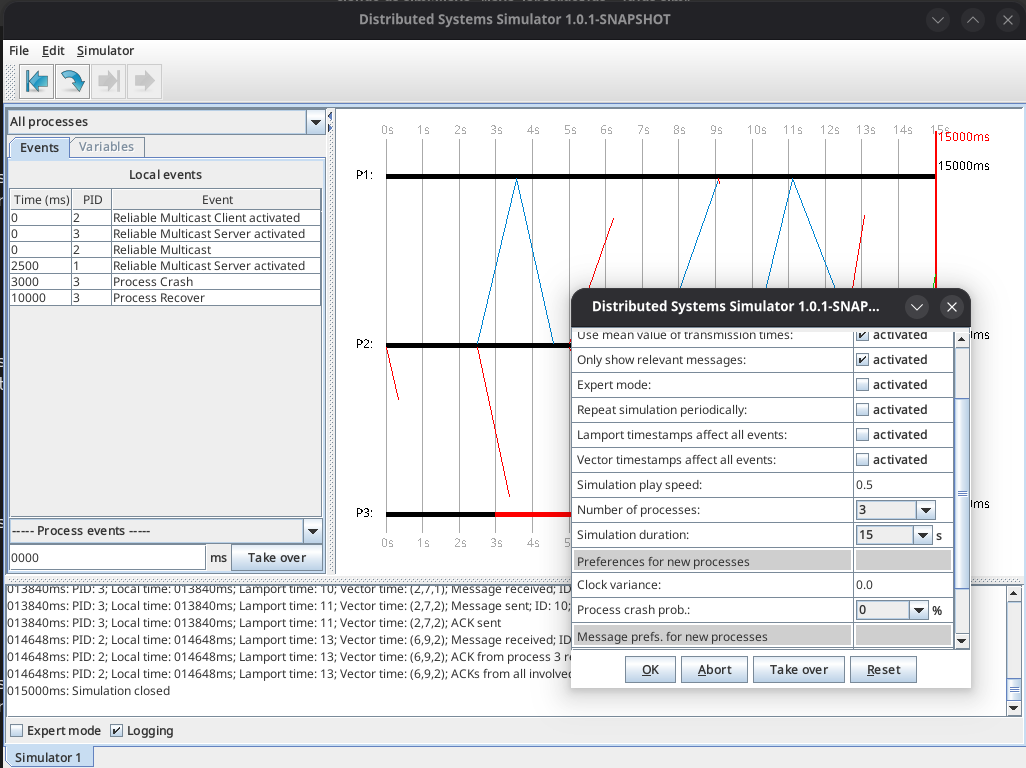
The graphical simulation visualization is located in the center right. The X-axis shows the time in milliseconds, and all participating processes are listed on the Y-axis. The demo simulation ends after exactly 15 seconds. The visualization shows processes (with PIDs 1, 2, and 3), each with its own horizontal black bar. On these process bars, users can read the respective local process time. The vertical red line represents the global simulation time.
The process bars also serve as start and end points for messages. For example, if Process 1 sends a message to Process 2, a line is drawn from one process bar to the other. Messages that a process sends to itself are not visualized but are logged in the log window (more on this later).
Another way to open a process editor is to left-click on the process bar belonging to the process. A right-click, on the other hand, opens a popup window with additional options. A process can only be forced to crash or be revived via the popup menu during a running simulation.
In general, the number of processes can vary as desired. The simulation duration is at least 5 and at most 120 seconds. The simulation only ends when the global time reaches the specified simulation end time (here 15 seconds), not when a local process time reaches this end time.
Color Differentiation
Colors help to better interpret the processes of a simulation. By default, processes (process bars) and messages are displayed with the following colors (these are only the default colors, which can be changed via the settings):
Process Colors:
  Black   - The simulation is not currently running
  Green   - The process is running normally
  Orange  - The mouse is over the process bar
  Red     - The process has crashed

Message Colors:
  Green   - The message is still in transit
  Blue    - The message has successfully reached its destination
  Red     - The message was lost
The sidebar is used to program process events. At the top, the process to be managed is selected (here with PID 1). In this process selection, there is also the option to select "All Processes", which displays all programmed events of all processes simultaneously. "Local events" are those events that occur when a certain local time of the associated process has been reached. The event table below lists all programmed events along with their occurrence times and PIDs.
To create a new event, the user can either right-click on a process bar and select "Insert local event", or select an event below the event table, enter the event occurrence time in the text field below, and click "Apply".
Right-clicking on the event editor allows you to either copy or delete all selected events. Using the Ctrl key, multiple events can be selected simultaneously. The entries in the Time and PID columns can be edited afterwards. This provides a convenient way to move already programmed events to a different time or assign them to a different process. However, users should ensure that they press the Enter key after changing the event occurrence time, otherwise the change will be ineffective.
In addition to the Events tab, the sidebar has another tab called "Variables". Behind this tab is the process editor of the currently selected process. There, all variables of the process can be edited, providing another way to access a process editor.
The Log Window
The log window (at the bottom) logs all occurring events in chronological order. At the beginning of each log entry, the global time in milliseconds is always logged. For each process, its local times as well as the Lamport and vector timestamps are also listed. After the time information, additional details are provided, such as which message was sent with what content and which protocol it belongs to. This will be demonstrated later with examples.
000000ms: New Simulation
000000ms: New Process; PID: 1; Local Time: 000000ms; Lamport time: 0; Vector time: (0,0,0)
000000ms: New Process; PID: 2; Local Time: 000000ms; Lamport time: 0; Vector time: (0,0,0)
000000ms: New Process; PID: 3; Local Time: 000000ms; Lamport time: 0; Vector time: (0,0,0)
By deactivating the logging switch, message logging can be temporarily disabled. With logging deactivated, no new messages are written to the log window. After reactivating the switch, all omitted messages are subsequently written to the window. Deactivated logging can lead to improved simulator performance.
Expert Mode
The simulator can be operated in two different modes: simple mode and expert mode. The simulator starts in simple mode by default, so users don't have to deal with the simulator's full functionality all at once. Simple mode is clearer but offers fewer functions. Expert mode is more suitable for experienced users and accordingly offers more flexibility. Expert mode can be activated or deactivated via the switch of the same name below the log window or via the simulation settings.
In expert mode, the following additional features become available:
- Global events: In addition to local events, global events can now also be edited. Global events are triggered when a specific global simulation time is reached, rather than a local process time. This only makes a difference when local process times differ from the global time (e.g. due to clock drift).
- Direct PID selection: The user can directly select the associated PID when programming a new event.
- Lamport and Vector time switches: If the user activates one of these two switches, the Lamport or vector timestamps are displayed in the visualization. Only one can be active at a time to maintain clarity.
- Anti-aliasing switch: Allows the user to activate or deactivate anti-aliasing for smoother graphics. Disabled by default for performance reasons.
- Log filter: A regular expression filter (Java syntax) that makes it possible to filter only the essential data from the logs. For example, "PID: (1|2)" shows only log lines containing "PID: 1" or "PID: 2". The filter can be activated retroactively and during a running simulation.
Configuration Settings
The simulation settings window allows configuring many aspects of the simulation. Key settings include:
- Processes receive own messages (default: false): Whether processes can receive messages they sent to themselves.
- Average message loss probabilities (default: true): Whether to average the loss probabilities of sender and receiver processes.
- Average transmission times (default: true): Whether to average the transmission times of sender and receiver processes.
- Show only relevant messages (default: true): Hides messages sent to processes that don't support the protocol.
- Expert mode (default: false): Enables expert mode features.
- Simulation speed (default: 0.5): The playback speed factor. A value of 1 means real-time, 0.5 means half speed.
- Number of processes (default: 3): Can also be changed during simulation via right-click.
- Simulation duration (default: 15s): Between 5 and 120 seconds.
Each process also has individual settings:
- Clock drift (default: 0.0): By what factor the local clock deviates. A value of 0.0 means no deviation. A value of 1.0 means double speed. Values > -1.0 are allowed.
- Random crash probability (default: 0%): Probability that the process crashes randomly during the simulation.
- Message loss probability (default: 0%): Probability that a message sent by this process is lost in transit.
- Min/Max transmission time (default: 500ms/2000ms): The range for random message delivery times.
Read the next post of this series:
Distributed Systems Simulator - Part 2: Built-in Protocols
Other related posts are:
2026-03-01 Loadbars 0.13.0 released
2022-12-24 (Re)learning Java - My takeaways
2022-03-06 The release of DTail 4.0.0
2016-11-20 Object oriented programming with ANSI C
E-Mail your comments to paul@nospam.buetow.org
Back to the main site